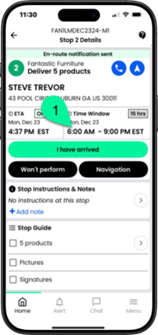
The Delivery
Navigate to the stop and tap I have arrived when you are at the delivery location
Dirígete a la parada y toca “He llegado” cuando estés en el lugar de entrega.
Rendez-vous à l’arrêt et appuyez sur « Je suis arrivé » lorsque vous êtes sur le lieu de livraison.
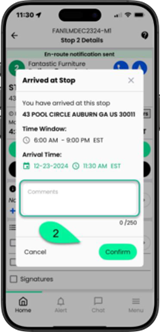
Enter comments if you wish and confirm date/time, then tap Confirm * Photo Guide
Si lo desea, puede añadir comentarios y confirmar la fecha y la hora; luego, toque Confirmar * Guía de fotos
Entrez des commentaires si vous le souhaitez et confirmez la date et l’heure, puis appuyez sur Confirmer * Guide photo
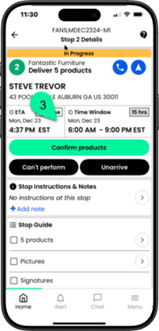
Next, tap Confirm products
A continuación, toca Confirmar productos.
Ensuite, appuyez sur Confirmer les produits
To confirm the items, tap Deliver
Para confirmar los artículos, toque Entregar
Pour confirmer les articles, appuyez sur Livrer
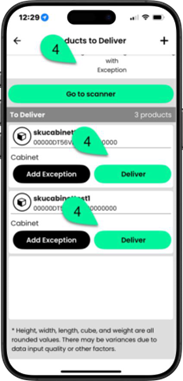
Or, tap Go to scanner and scan the barcodes
O bien, toque Ir al escáner y escanee los códigos de barras.
Ou appuyez sur « Accéder au scanneur » et scannez les codes-barres.
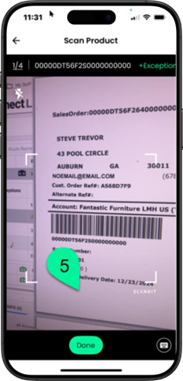
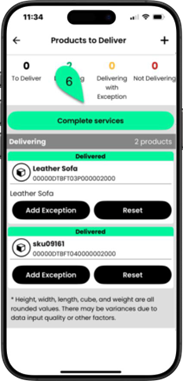
When all items are scanned, tap Complete services
Una vez escaneados todos los artículos, toque “Completar servicios”.
Une fois tous les articles numérisés, appuyez sur « Services terminés ».
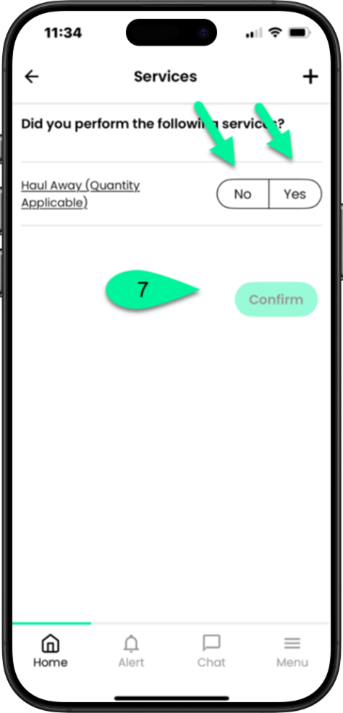
Confirm Yes or No if you have completed the service(s)* and tap Confirm
Confirme con Sí o No si ha completado el/los servicio(s)* y toque Confirmar.
Confirmez par Oui ou par Non si vous avez effectué le(s) service(s)* et appuyez sur Confirmer
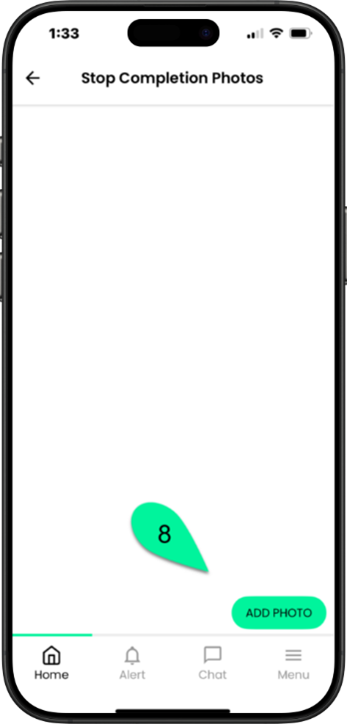
You will be required to capture images of the item(s) you delivered, tap ADD PHOTO
Se le solicitará que tome fotografías del/de los artículo(s) que entregó; toque AGREGAR FOTO.
Vous devrez prendre des photos de l’article ou des articles livrés. Appuyez sur AJOUTER UNE PHOTO
Capture as many images as you need of the delivered item(s) The picture count will increase. Once complete tap Done
Toma tantas fotos como necesites del artículo o los artículos entregados. El contador de imágenes aumentará. Una vez que hayas terminado, toca Listo.
Prenez autant de photos que nécessaire de l’article livré. Le nombre de photos augmentera. Une fois terminé, appuyez sur Terminé.
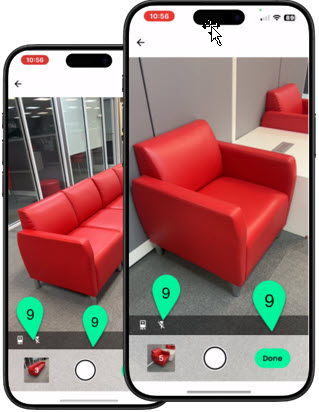
Once you have enough images, tap DONE
Una vez que tengas suficientes imágenes, toca LISTO.
Une fois que vous avez suffisamment d’images, appuyez sur TERMINÉ
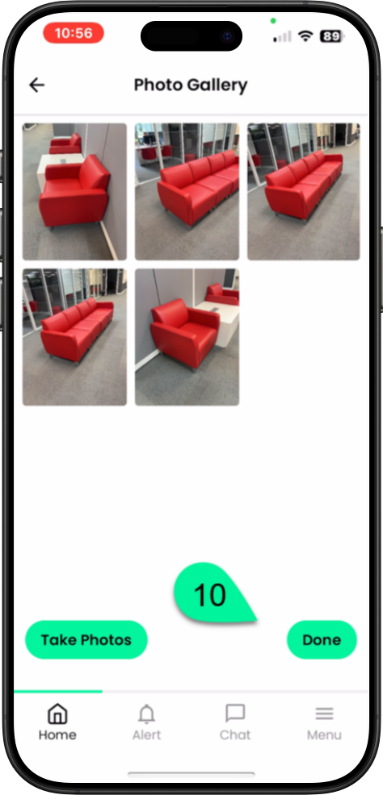
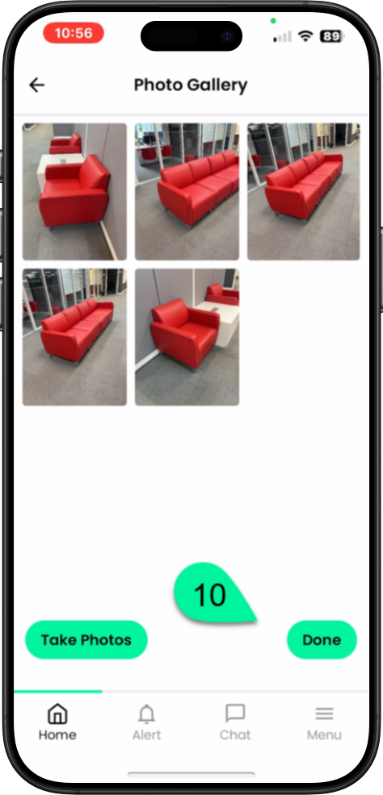
Once you have enough images, tap DONE
Una vez que tengas suficientes imágenes, toca LISTO.
Une fois que vous avez suffisamment d’images, appuyez sur TERMINÉ
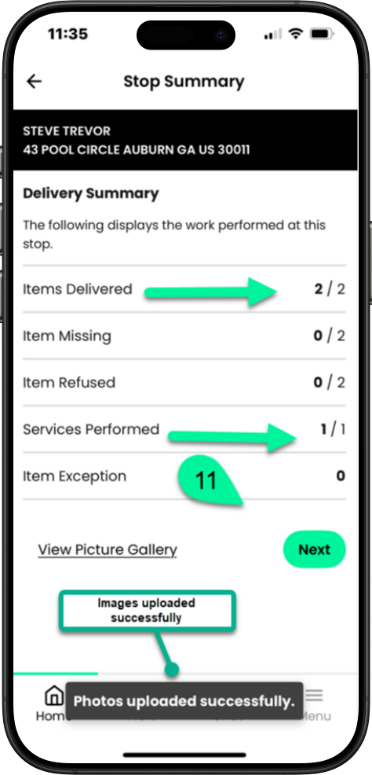
The Summary page shows the items delivered and Services completed. Tap Next
La página de resumen muestra los artículos entregados y los servicios completados. Toque Siguiente.
La page Résumé affiche les articles livrés et les services effectués. Appuyez sur Suivant.
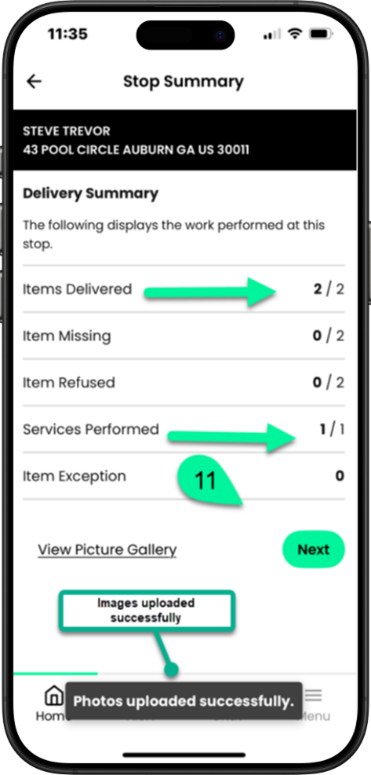
E-sign istructions are below. Tap Sign using the app.
Las instrucciones para la firma electrónica se encuentran a continuación. Toque “Firmar” usando la aplicación.
Les instructions pour la signature électronique sont ci-dessous. Appuyez sur « Signer » à l’aide de l’application.
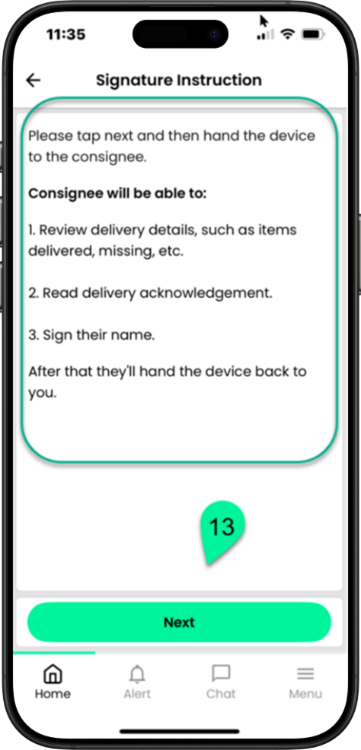
You are instructed to hand your phone to the consumer. Tap Next
Se le indica que entregue su teléfono al cliente. Toque Siguiente.
Vous devez remettre votre téléphone au client. Appuyez sur Suivant.
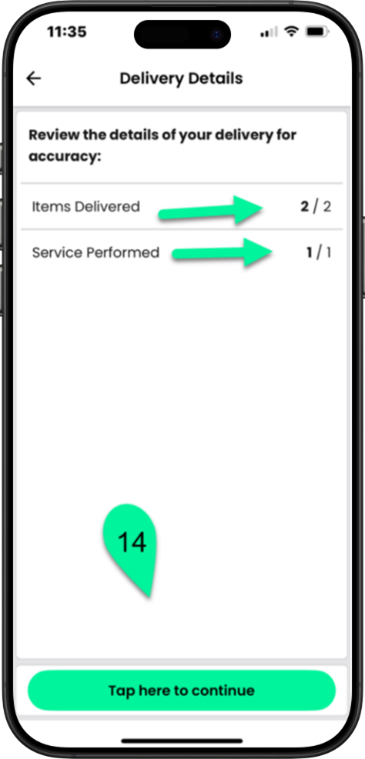
The consumer will see the items delivered and services, tap here to continue
El consumidor verá los artículos entregados y los servicios prestados; toque aquí para continuar.
Le consommateur verra les articles et les services livrés. Cliquez ici pour continuer.
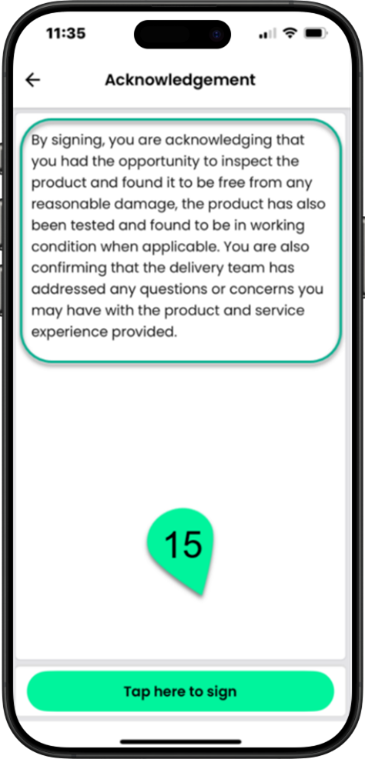
The consumer will read the Acknowledgement and then Tap here to sign
El consumidor leerá el acuse de recibo y luego tocará aquí para firmar.
Le consommateur lira l’accusé de réception puis cliquera ici pour signer.
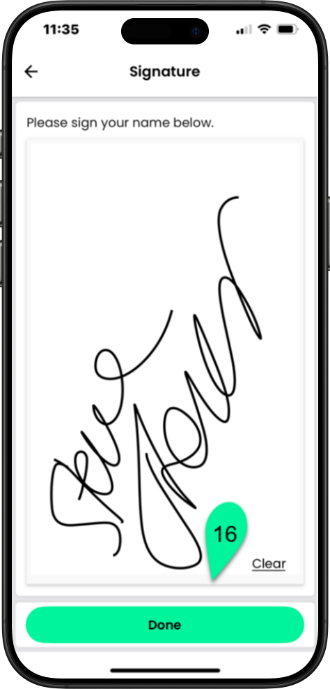
Once the consumer has entered their signature, they will tap Done
Una vez que el consumidor haya introducido su firma, deberá pulsar en “Listo”.
Une fois que le consommateur aura entré sa signature, il appuiera sur Terminé.
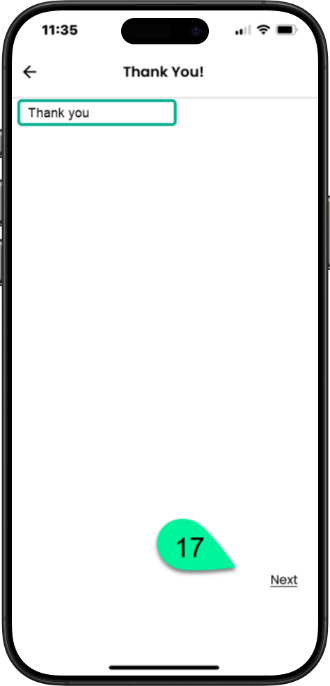
A thank you message is displayed*. They will tap Next and hand over the phone
Se muestra un mensaje de agradecimiento*. A continuación, tocarán Siguiente y entregarán el teléfono.
Un message de remerciement s’affiche*. Ils appuient sur Suivant et tendent le téléphone.
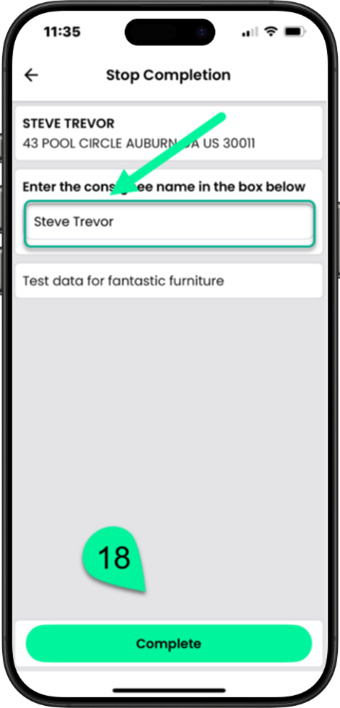
Enter the consumer’s name and tap Complete to complete the stop.
Introduzca el nombre del cliente y toque “Completar” para finalizar la entrega.
Entrez le nom du consommateur et appuyez sur Terminer pour terminer l’arrêt.