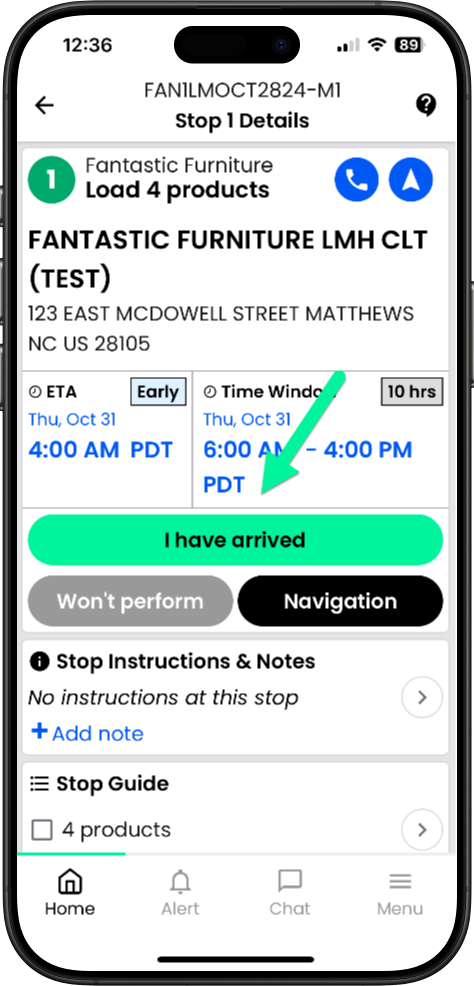
Pickup from the hub – Details
When you arrive at the hub and are ready to begin loading click I have arrived
Cómo obtener una firma electrónica del consumidor.
Comment obtenir une signature électronique du consommateur.
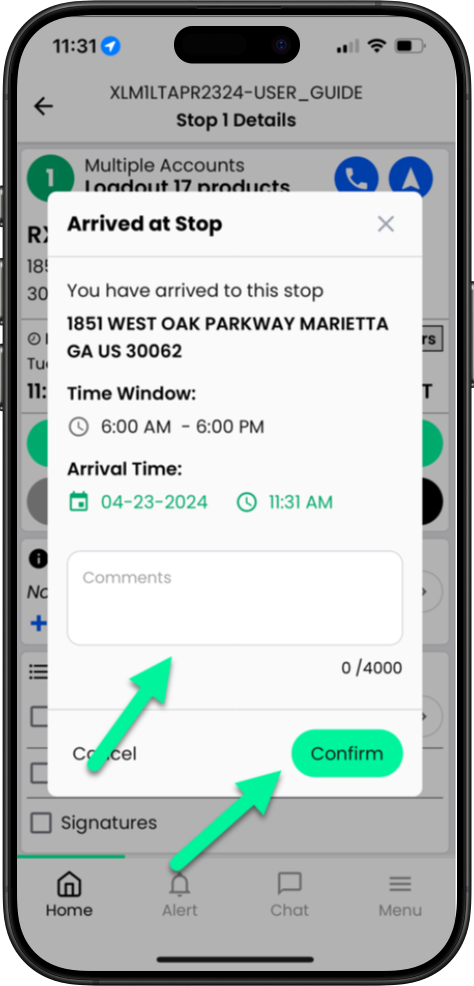
Enter any comments you wish to add and tap Confirm
Introduce cualquier comentario que desees añadir y pulsa Confirmar.
Entrez les commentaires que vous voulez ajouter et appuyez sur Confirmer
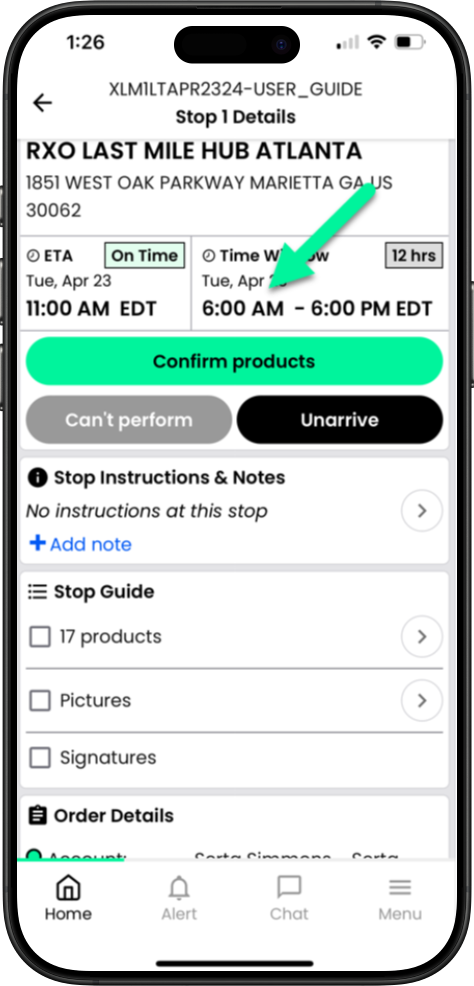
Tap Confirm products to confirm your products
Toca Confirmar productos para confirmar tus productos.
Appuyez sur « Confirmer les produits » pour confirmer vos produits.
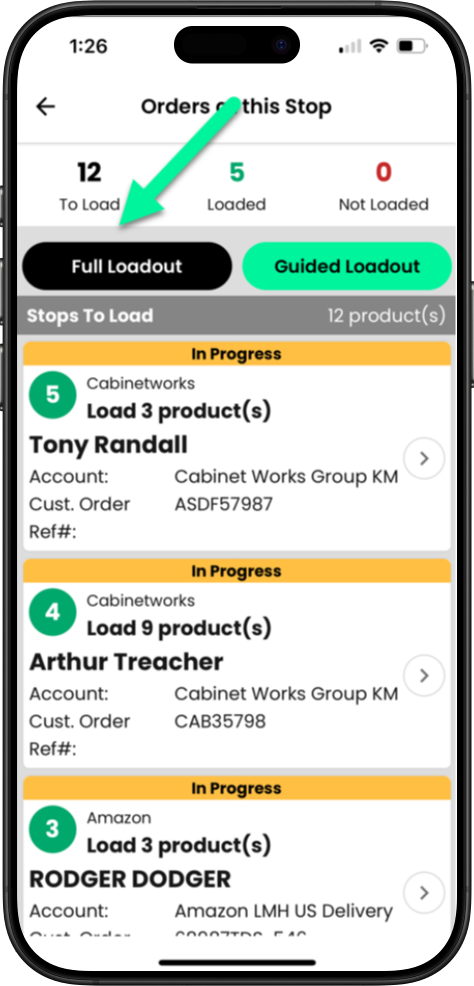
Full Loadout
Tap Full Loadout to confirm all products
Toca “Carga completa” para confirmar todos los productos.
Appuyez sur Charge complète pour confirmer tous les produits
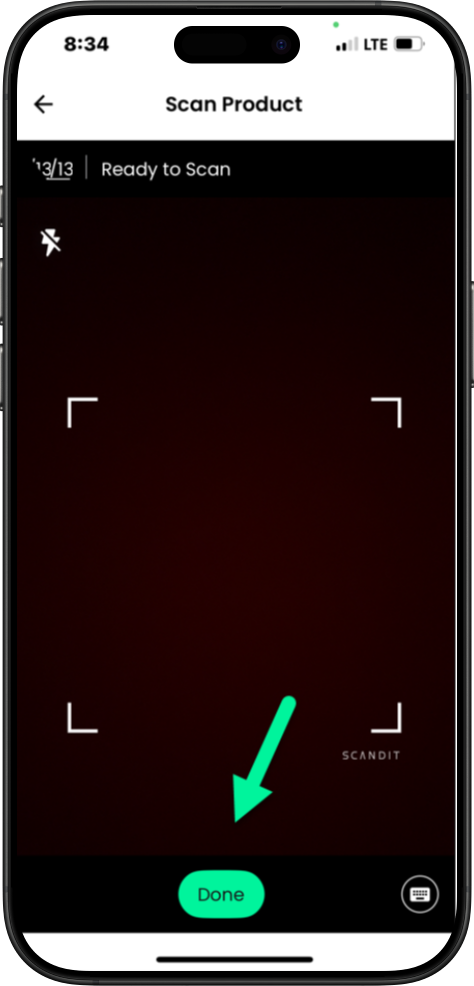
Scan the barcodes, then tap Done when complete.
Escanee los códigos de barras y, a continuación, toque Listo cuando haya terminado.
Numérisez les codes-barres, puis appuyez sur Terminé une fois l’opération terminée.
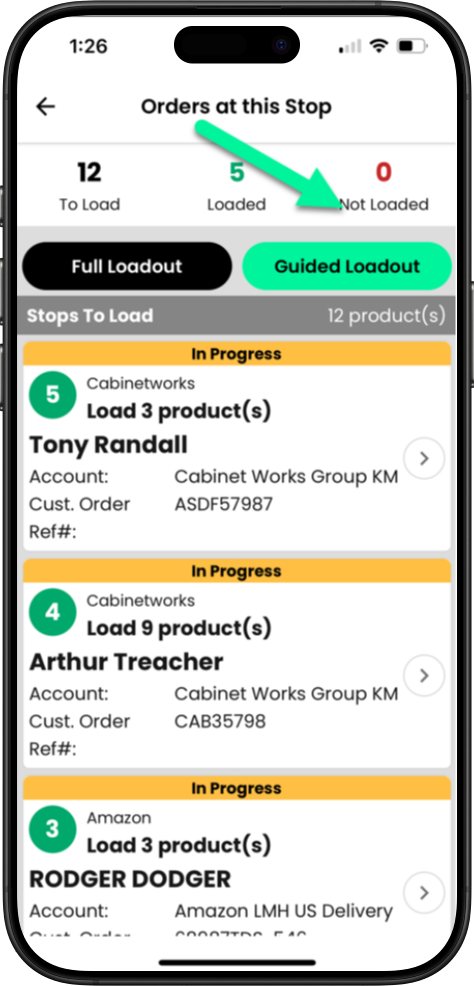
Guided Loadout
Tap Guided Loadout to scan products by consumer
Toca “Configuración de carga guiada” para escanear los productos por consumidor.
Appuyez sur Chargement guidé pour numériser les produits par consommateur
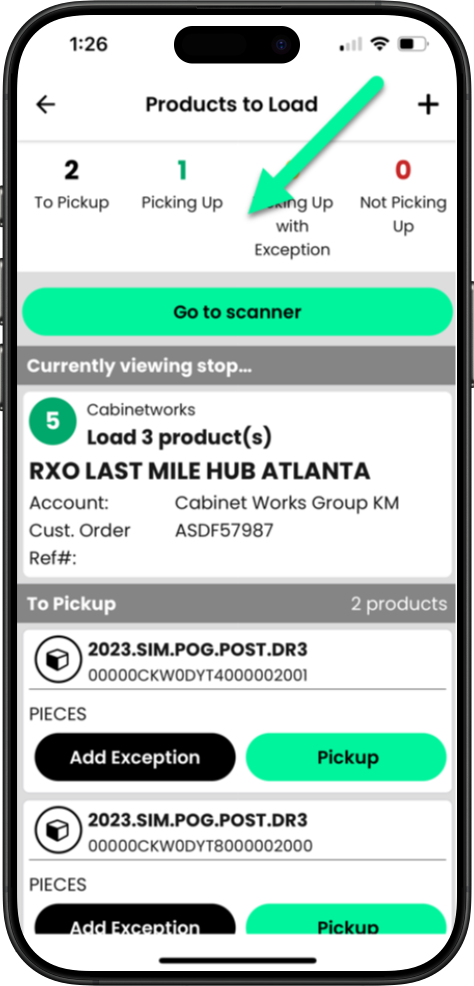
The last consumer on your delivery will show first on your pickup. Tap the scanner to scan all items for this order
El último cliente de tu ruta de entrega aparecerá primero en la lista de recogidas. Toca el escáner para escanear todos los artículos de este pedido.
Le dernier client de votre livraison apparaîtra en premier sur votre liste de retrait. Appuyez sur le scanneur pour scanner tous les articles de cette commande.
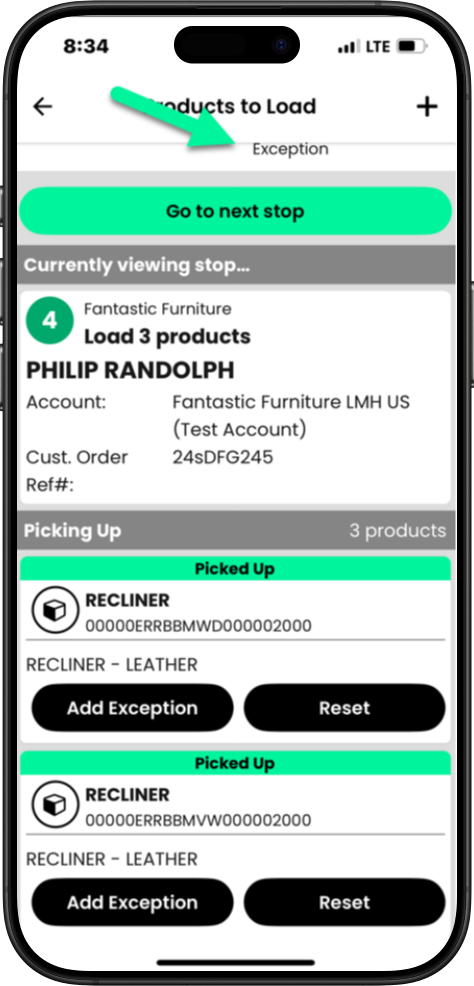
After scanning all products on each order, tap Go to next stopGuided Loadout and repeat scanning for each consumer.
Después de escanear todos los productos de cada pedido, toque “Ir a la siguiente parada” (Carga guiada) y repita el proceso de escaneo para cada cliente.
Après avoir scanné tous les produits de chaque commande, appuyez sur « Aller à l’étape suivante » et répétez le balayage pour chaque client.
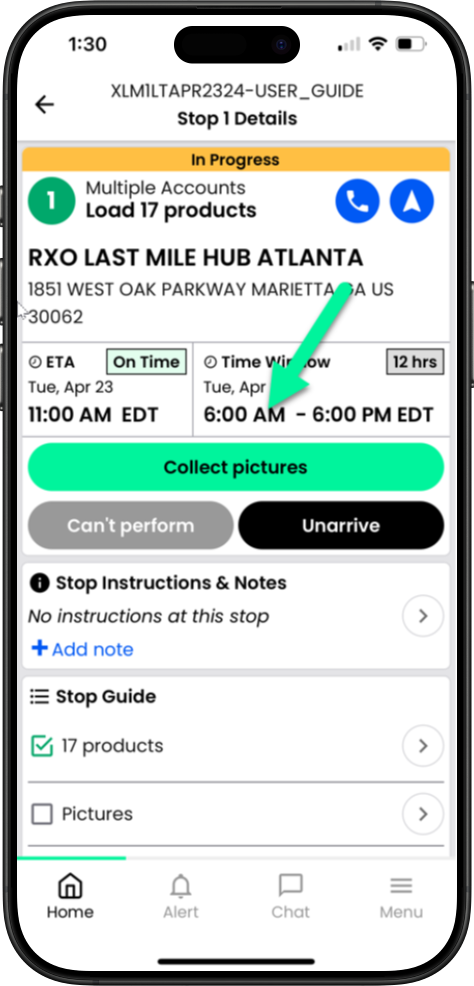
If photos are required at pickup, tap Collect pictures
Si se requieren fotos al momento de la recogida, toque “Tomar fotos”.
Si des photos sont nécessaires lors du retrait, appuyez sur « Récupérer les photos ».
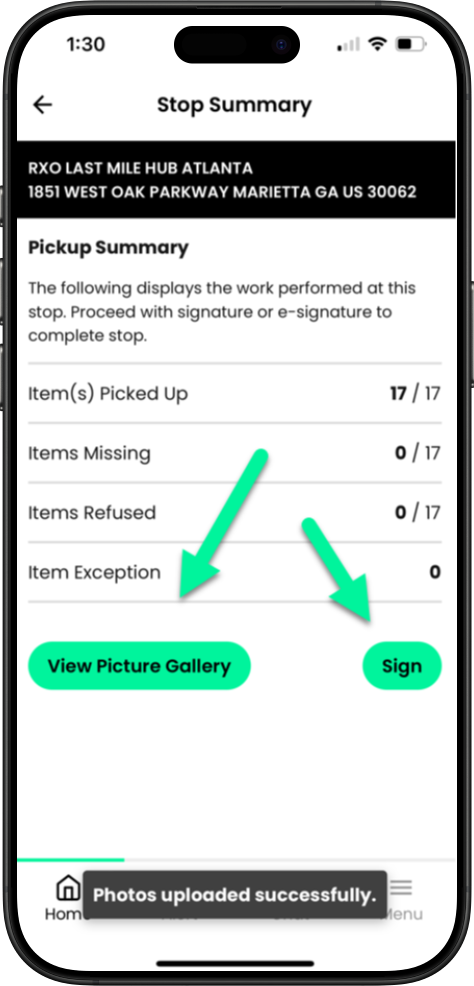
Once you have captured your images, you will be on the Stop Summary screen. You can view the images captured in View Picture Gallery or just continue to Sign
Una vez que hayas capturado las imágenes, accederás a la pantalla de resumen de la parada. Puedes ver las imágenes capturadas en la galería de imágenes o simplemente continuar para firmar.
Une fois vos photos prises, vous accéderez à l’écran « Récapitulatif des arrêts ». Vous pourrez alors les visualiser dans la galerie d’images ou poursuivre la signature.
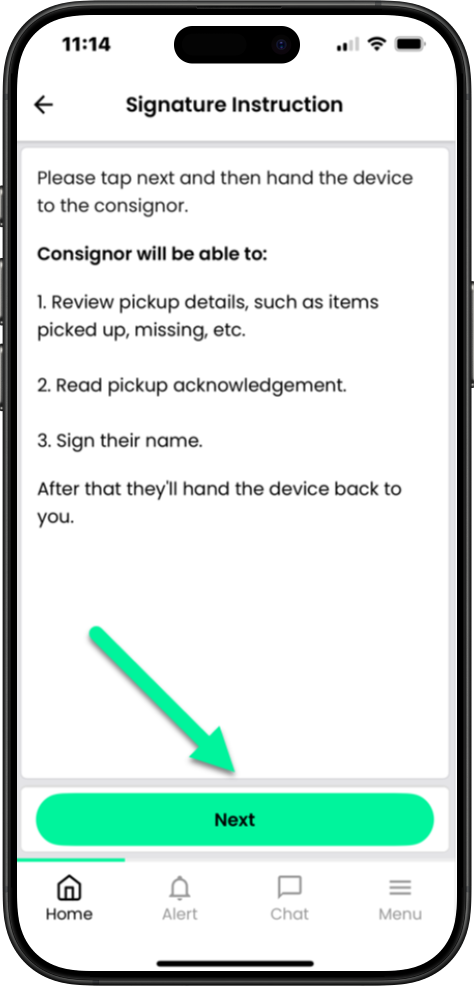
The Signature instruction screen will tell you to give your phone to the warehouse manager so they can confirm your pickup. Tap Next
La pantalla de instrucciones de firma le indicará que entregue su teléfono al encargado del almacén para que este confirme la recogida. Toque Siguiente.
L’écran d’instructions de signature vous demandera de remettre votre téléphone au gérant de l’entrepôt afin qu’il puisse confirmer votre enlèvement. Appuyez sur Suivant.
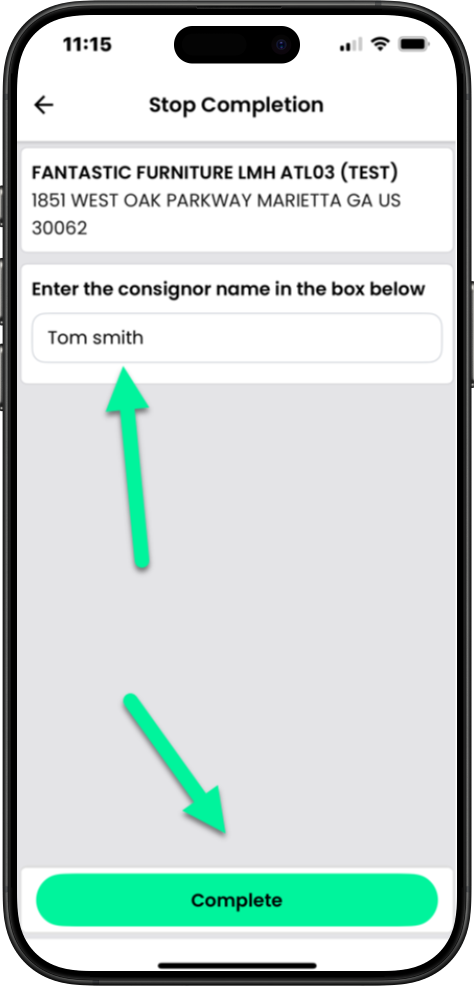
Once the manager completes their signature they should tap Done and return the phone to you. You will enter their name and tap Complete
Una vez que el gerente haya firmado, debe tocar “Listo” y devolverle el teléfono. Usted deberá ingresar su nombre y luego tocar “Completar”.
Une fois que le gestionnaire aura signé, il devra appuyer sur « Terminé » et vous remettre le téléphone. Vous devrez ensuite entrer son nom et appuyer sur « Terminé ».